QTP Secret on How to Enter Text in a WebElement
WebElement Object Recognition Issues
Assistance with Quick Test Professional WebElement Object Recognition issues is one of the most-asked questions I receive.
It’s mostly due to the reasons I list in my 6 Things to Try When QTP Does Not Recognize an Object post; other times the issue is that people are having a hard time interacting with a web element – for instance, trying to enter text into a web element without any luck.
Although it can be frustrating at times to obtain the behavior you want, you can actually use the .object method of QTP to get around most interaction issues.
WebElement Frustration
Recently I received an email from a frustrated user. They wrote:
“Here is a sample problem I am running into:
- go to Boostmobile.com
- select Shop/Phones from the menu
- add any phone to the cart
- enter a zip code and click check availability
We have now arrived at a place where the problem is: How would one make that State drop down select a state?”
Using the object method along with descriptive programming will allow us to get around this issue.
How to enter text into a WebElement
- First, start QTP up and manually follow the steps above to get to the state web element that we’re going to work with in the following example.
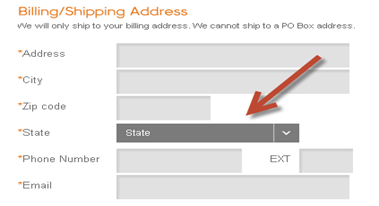
- Click “record” on QTP, select a state from the dropdown and stop recording.
- Notice how only the click action is recorded, without any information on what state was selected:
Browser("Checkout Step 1 | Shipping/Bil").Page("Checkout Step 1 | Shipping/Bil").Link("State").Click
- Next, point the QTP spy on the state field.
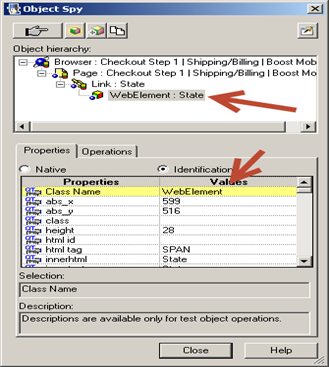
The “State” field is identified as a webelement. (This kind of stinks, because if you look at the help for the methods of a webelement, there are no available methods for entering or selecting text.)
WebElement Methods
| Method Name | Method Desc |
| CaptureBitmap | Saves a screen capture of the object as a .png or .bmp image, depending on the specified file extension. |
| Check | Checks whether the actual value of an item matches the expected value. |
| CheckProperty | Checks whether the specified object property achieves the specified value within the specified timeout. |
| ChildObjects | Returns the collection of child objects contained within the object. |
| Click | Clicks the object. |
| Drag | Performs the ‘drag’ part of a drag and drop operation. |
| Drop | Performs the ‘drop’ part of a drag and drop operation. |
| FireEvent | Triggers an event. |
| GetROProperty | Returns the current value of the specified identification property from the object in the application. |
| GetTOProperties | Returns the collection of properties and values used to identify the object. |
| GetTOProperty | Returns the value of the specified identification property from the test object description |
| MiddleClick | Middle-clicks the object. |
| Output | Retrieves the current value of an item and stores it in a specified location. |
| RefreshObject | Instructs QuickTest to re-identify the object in the application the next time a step refers to this object. |
| RightClick | Right-clicks the object. |
| SetTOProperty | Sets the value of the specified identification property in the test object description. |
| Submit | Submits a form. |
| ToString | Returns a string that represents the current test object. |
| WaitProperty | Waits until the specified object property achieves the specified value or exceeds the specified timeout before continuing to the next step. |
Now what? Actually, we’re in luck; we can use the webelements object method along with descriptive programming to access and interact with the native methods and properties of a webelement.
WebElement Object Property with Descriptive Programming
To select a state — Rhode Island, for instance — we can use the innertext property to select the value in the State webelement as follows:
Browser("Checkout Step 1 | Shipping/Bil").Page("Checkout Step 1 | Shipping/Bil").Link("html tag:=A","index:=1").WebElement("html tag:=SPAN").Object.innertext = "Rhode Island"
Using descriptive programming allows us to bypass the object repository and use the property/value in place of an OR name. Using the innertext property of the web element allows us to set the State name we want to use.
This should give us enough functionality to move on in our scripting.
Pretty cool!

Joe Colantonio is the founder of TestGuild, an industry-leading platform for automation testing and software testing tools. With over 25 years of hands-on experience, he has worked with top enterprise companies, helped develop early test automation tools and frameworks, and runs the largest online automation testing conference, Automation Guild.
Joe is also the author of Automation Awesomeness: 260 Actionable Affirmations To Improve Your QA & Automation Testing Skills and the host of the TestGuild podcast, which he has released weekly since 2014, making it the longest-running podcast dedicated to automation testing. Over the years, he has interviewed top thought leaders in DevOps, AI-driven test automation, and software quality, shaping the conversation in the industry.
With a reach of over 400,000 across his YouTube channel, LinkedIn, email list, and other social channels, Joe’s insights impact thousands of testers and engineers worldwide.
He has worked with some of the top companies in software testing and automation, including Tricentis, Keysight, Applitools, and BrowserStack, as sponsors and partners, helping them connect with the right audience in the automation testing space.
Follow him on LinkedIn or check out more at TestGuild.com.
Related Posts

What is an SDET? An SDET (Software Development Engineer in Test) is a software engineer whose main job is building […]

Short answer: Grok Bot found a real bug, and it stopped about two inches below the surface. I pointed a […]

A Director of Sales hit me with “AI-DLC” last week like I should already know it. I nodded. Then I […]

Your developers are shipping more code than they were a year ago. Probably a lot more. And your test coverage […]