
HP’s UFT API formally named Service Test was created to test headless technologies. One of those technologies is File Transfer Protocol (FTP). Service Test’s FTP activities allow us to perform the following 8 FTP operations:
- FTP Download
- FTP Upload
- FTP Rename
- FTP File Delete
- FTP File Get Size
- FTP Directory Delete
- FTP Directory Create
- FTP Directory Get Content
(Before trying the Service Test activities I had to setup a local FTP site.)
Install a local FTP server
In order to acquire rights to certain operations while creating this post, I decided to create a local FTP server, which I did by installing XAMPP. XAMPP is an easy-to-install Apache distribution that contains a FileZilla FTP Server. Also LifeHacker has a really good article on how to Build a Home FTP Server with FileZilla.
Setup FTP for using UFT API Testing
Once FileZilla was installed I also did the following:
-
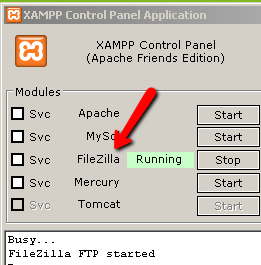
Started FileZilla from the XAMPP Control Panel Application:
-
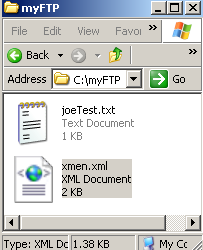
Created a Folder on my local “C ” drive named myFTP, then added a text file named joeTest.txt and an xmen.xml file to it:
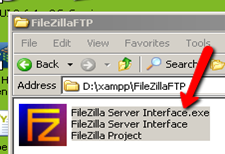
- Created an empty folder named ftpTemp on the Root of my “C” drive, then started the FileZilla Server Interface.exe from the
xamppFileZillaFTP directory:
-
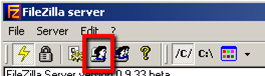
Under the General options, I created a user named service Test without a password
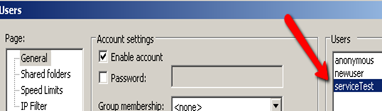
-
Under Shared folders, I added myFTP folder with all rights selected for the serviceTest user
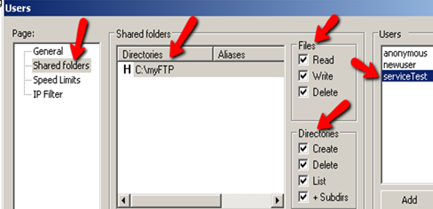
Cool!! I then had my FTP server setup — complete with an FTP folder with files and a user, as well as full rights to both. Now, it’s time to check out our first FTP activity FTP Download …
UFT API FTP Download
Create a new test in service test and add an FTP Download activity to the main canvas area from the FTP folder under the Toolbox.
Next, set the following properties under the FTP Download Property Sheet:
URL path = ftp://127.0.0.1/joeTest.txt
User ID = serviceTest
Local file path = C:ftpTemp
Overwrite = true
The empty ftpTemp folder we created earlier should now contain the joeText.txt file
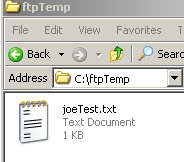
UFT API FTP Upload
In service test add to the main canvas area a FTP Upload activity from the FTP folder under the Toolbox.
Under the FTP Upload Property Sheet set the following properties:
Directory URL path = ftp://127.0.0.1/
User ID = serviceTest
Local file path = C:blogpost.txt (the name of your file)
Overwrite = true
Your myFTP folder should now contain the uploaded file
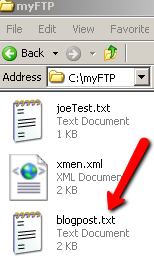
UFT API FTP Rename
In service test add to the main canvas area a FTP Rename activity from the FTP folder under the Toolbox.
Under the FTP Renemae Property Sheet set the following properties:
Directory URL path = ftp://127.0.0.1/joeTest.txt
User ID = serviceTest
New file name = joeRenameTest.txt
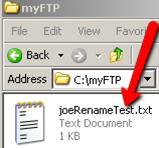
Your myFTP folder should now contain the renamed file
UFT API FTP Delete
Let’s delete the file we added using the previous FTP Upload activity. In service test add to the main canvas area a FTP Upload activity from the FTP folder under the Toolbox.
Under the FTP Upload Property Sheet set the following properties:
Directory URL path = ftp://127.0.0.1/jblogPost.txt
User ID = serviceTest
Your myFTP folder should now contain only 2 files.
UFT API FTP File Get Size
In service test add to the main canvas area a FTP File Get Size activity from the FTP folder under the Toolbox.
Under the FTP File Get Size Property Sheet set the following properties:
Directory URL path = ftp://127.0.0.1/joeRenameTest.txt
User ID = serviceTest
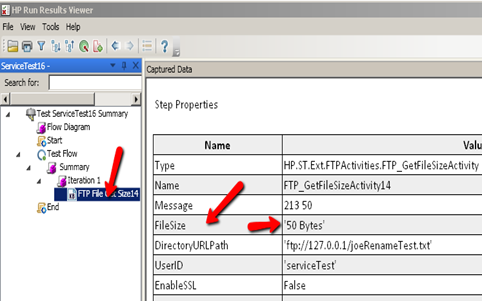
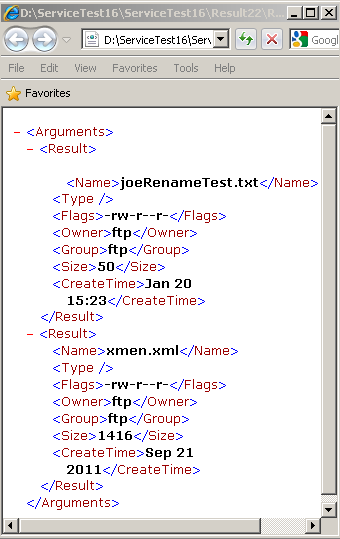
Your test result’s should contain the file info with the FileSize for the file:
UFT API FTP Directory Create
In service test add to the main canvas area a FTP Directory Create activity from the FTP folder under the Toolbox.
Under the FTP Directory Create Property Sheet set the following properties:
URL path = ftp://127.0.0.1/
User ID = serviceTest
Directory name = ftpCreateDir
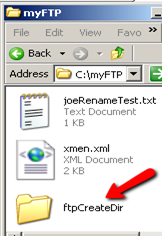
Your myFTP folder should now contain the ftpCreateDir directory
UFT API FTP Directory Delete
Now let’s delete the directory we just created. In service test add to the main canvas area a FTP Directory Delete activity from the FTP folder under the Toolbox.
Under the FTP Directory Delete Property Sheet set the following properties:
URL path = ftp://127.0.0.1/ ftpCreateDir
User ID = serviceTest
Your myFTP folder should now no longer contain the ftpCreateDir directory
FTP Directory Get Content
And now for the last FTP activity. In service test add to the main canvas area a FTP Directory Get Content activity from the FTP folder under the Toolbox.
Under the FTP Directory Get Content Property Sheet set the following properties:
URL path = ftp://127.0.0.1/
User ID = serviceTest
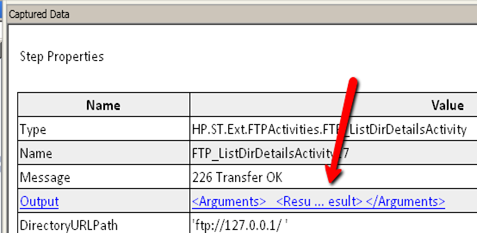
In the HP Reun Results Viewer navigate to the FTP Directory Get Content and clcik on the Captured Data Output link

Joe Colantonio is the founder of TestGuild, an industry-leading platform for automation testing and software testing tools. With over 25 years of hands-on experience, he has worked with top enterprise companies, helped develop early test automation tools and frameworks, and runs the largest online automation testing conference, Automation Guild.
Joe is also the author of Automation Awesomeness: 260 Actionable Affirmations To Improve Your QA & Automation Testing Skills and the host of the TestGuild podcast, which he has released weekly since 2014, making it the longest-running podcast dedicated to automation testing. Over the years, he has interviewed top thought leaders in DevOps, AI-driven test automation, and software quality, shaping the conversation in the industry.
With a reach of over 400,000 across his YouTube channel, LinkedIn, email list, and other social channels, Joe’s insights impact thousands of testers and engineers worldwide.
He has worked with some of the top companies in software testing and automation, including Tricentis, Keysight, Applitools, and BrowserStack, as sponsors and partners, helping them connect with the right audience in the automation testing space.
Follow him on LinkedIn or check out more at TestGuild.com.
Related Posts

What is an SDET? An SDET (Software Development Engineer in Test) is a software engineer whose main job is building […]

Short answer: Grok Bot found a real bug, and it stopped about two inches below the surface. I pointed a […]

A Director of Sales hit me with “AI-DLC” last week like I should already know it. I nodded. Then I […]

Your developers are shipping more code than they were a year ago. Probably a lot more. And your test coverage […]