I recently received the following email:
“I have gone through your video on How to run a Selenium Web driver test case with Sauce Labs but it was for Java. Can you please show [us] how to do the same using the Selenium C# .NET binding?” So today I’m going to show you how to run a C# Selenium script in Sauce labs.
For those of you that aren’t aware, Sauce Labs is the exclusive sponsor of my TestTalks podcast. Accordingly, I have a special code you can use to get 20 hours of free automation! Check out my SauceLabs page for more info.
Getting Started with Sauce Labs C Sharp
- First, log on to SauceLabs with your free account. (Check out my video on how to use my special SauceLabs promo offer.)
- https://saucelabs.com/login
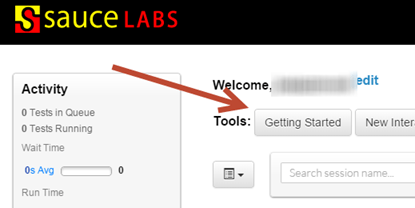
- Under the Tools section, select the Getting Started button.
-
You’ll be presented with three options:
- Automated
- Mobile
- Manual
- Automated
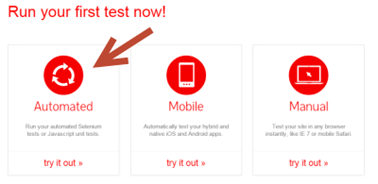
- Select Automated
Now, all you need to do is follow this quick, four-step process:
Choose your language
- For this example, I’ll be using C#.NET, but Sauce Labs supports all the Selenium language bindings.
- Select the C#.NET option.
Setup Your Project
Open up a new project in Visual Studio.
- In the New Project screen, select a C# Class Library template.
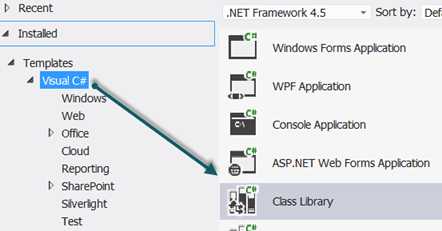
- Name the project ExampleSauce and click OK.
- From the VST menu, choose Tools>Library Package Manager> Manage Nuget Package for Solution.
- In the Manage NuGet Packages screen, enter Selenium in the Search packages field.
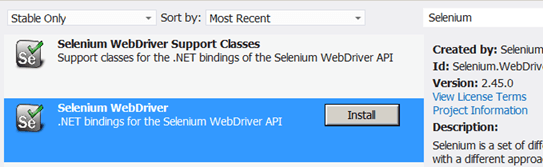
- Click on the Install button for the Selenium WebDriver. Once it’s installed, do the same for Selenium WebDriver Support Classes.
- Next, search for Gallio and install Gallio & MbUnit.

- And Gallio Bundle
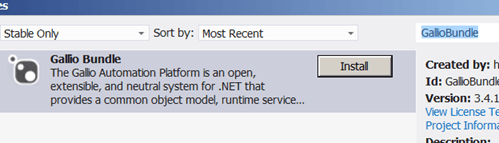
- Click Close in the Manage NuGet Packages window.
Start writing the C# tests
At the top under the using statements, add:
using Gallio.Framework;

using Gallio.Model;

using MbUnit.Framework;

using OpenQA.Selenium;

using OpenQA.Selenium.Remote;

using OpenQA.Selenium.Support.UI;
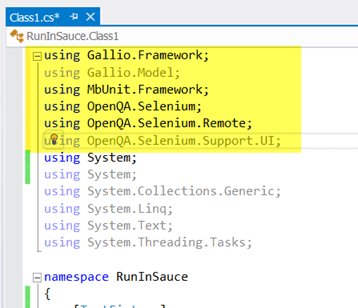
- In the RunInSauce project right before Class1, add the following:
[TestFixture]

[Header("browser", "version", "platform")]

[Row("chrome", "42", "Windows 7")]

[Row("chrome", "35", "linux")]
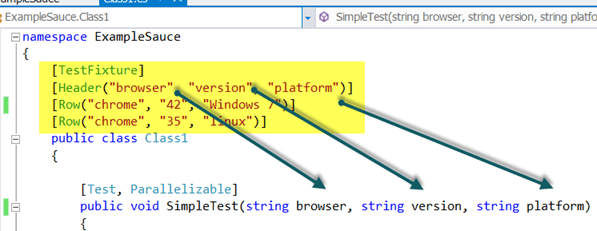
- Under the Class1 section, let’s add a method named SimpleTest and our test code. (This is for demonstration purposes only — there are better ways of doing this.)
[Test, Parallelizable]
public void SimpleTest(string browser, string version, string platform)
{
Uri commandExecutorUri = new Uri("http://ondemand.saucelabs.com/wd/hub");
DesiredCapabilities desiredCapabilites = new DesiredCapabilities(browser, version, Platform.CurrentPlatform);
desiredCapabilites.SetCapability("platform", platform);
desiredCapabilites.SetCapability("username", "yourseleniumusername");
desiredCapabilites.SetCapability("accessKey", "yourseleniumaccesskey");
desiredCapabilites.SetCapability("name", TestContext.CurrentContext.Test.Name);
var _Driver = new RemoteWebDriver(commandExecutorUri, desiredCapabilites);
_Driver.Manage().Timeouts().ImplicitlyWait(TimeSpan.FromSeconds(30));
// navigate to the page under test
_Driver.Navigate().GoToUrl("https://testguild.com/SeleniumTestPage.html");
// verify the page title is correct
Assert.Contains(_Driver.Title, "Selenium WebDriver Validation");
_Driver.Quit();
}
- Right click on the ExampleSauce project and select Properties.
- Click on Debug.
- Click on Start external program and navigate to Gallio.Icarus.exe in your VST projects packages>GallioBundle.3.4.14.0>bin directory. Mine was in:
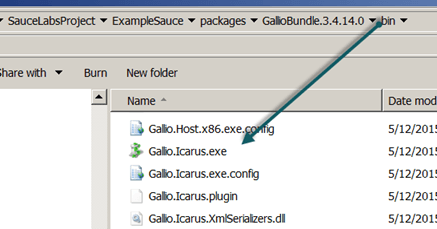
-
Under the Command line arguments, enter the name of your namespace.dll
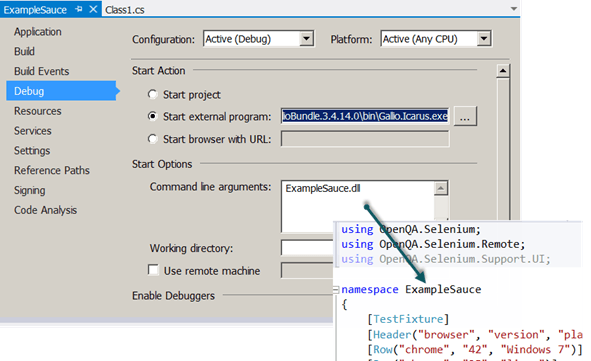
-
Click on F5 to build and debug the solution.
-
The Gallio Icarus runner will appear where you can run your tests.
-
Click on the Start button.
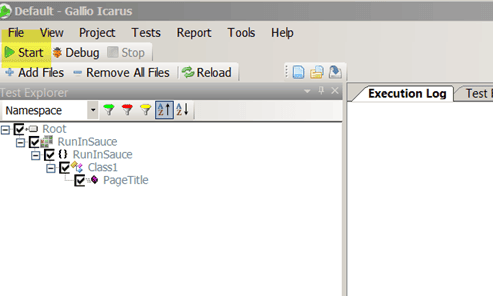
-
Your test should run and pass. You can tell by looking in the Gallio Test Report Execution Log tab:
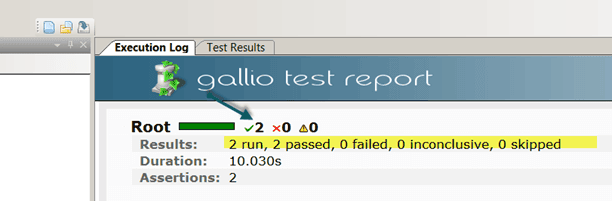
-
You should also see the results when you login to Sauce Labs.
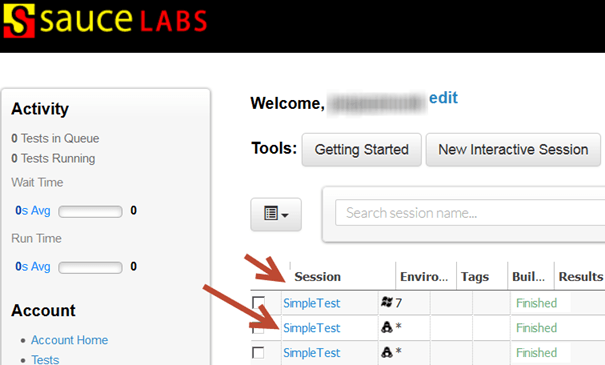
-
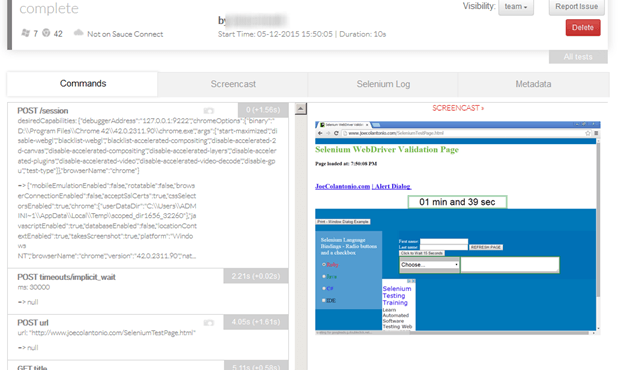
Clicking on each Session will bring up each individual run’s execution results, where you can see step-by-step results and timings as well as video playback.

Joe Colantonio is the founder of TestGuild, an industry-leading platform for automation testing and software testing tools. With over 25 years of hands-on experience, he has worked with top enterprise companies, helped develop early test automation tools and frameworks, and runs the largest online automation testing conference, Automation Guild.
Joe is also the author of Automation Awesomeness: 260 Actionable Affirmations To Improve Your QA & Automation Testing Skills and the host of the TestGuild podcast, which he has released weekly since 2014, making it the longest-running podcast dedicated to automation testing. Over the years, he has interviewed top thought leaders in DevOps, AI-driven test automation, and software quality, shaping the conversation in the industry.
With a reach of over 400,000 across his YouTube channel, LinkedIn, email list, and other social channels, Joe’s insights impact thousands of testers and engineers worldwide.
He has worked with some of the top companies in software testing and automation, including Tricentis, Keysight, Applitools, and BrowserStack, as sponsors and partners, helping them connect with the right audience in the automation testing space.
Follow him on LinkedIn or check out more at TestGuild.com.
Related Posts

What is an SDET? An SDET (Software Development Engineer in Test) is a software engineer whose main job is building […]
Short answer: Grok Bot found a real bug, and it stopped about two inches below the surface. I pointed a […]

A Director of Sales hit me with “AI-DLC” last week like I should already know it. I nodded. Then I […]
Your developers are shipping more code than they were a year ago. Probably a lot more. And your test coverage […]